Quick guide for riding schools and equestrian centres
Your school up and running in ten minutes
Nine steps, in the order it makes sense to do them. Every screen below is the real app, with sample data.
1Create the school account
On myhorsediary.app tap “Start the free trial”: school name, email, password. No card: you get a 2-month free trial; we write to you before it ends and, if you want to carry on, you start the subscription from the app.
The School tab switches on right away. The app runs in the browser of your phone, tablet or computer: on the phone, “Add to Home Screen” and it becomes an icon like the others.
2School: profile, instructors, staff
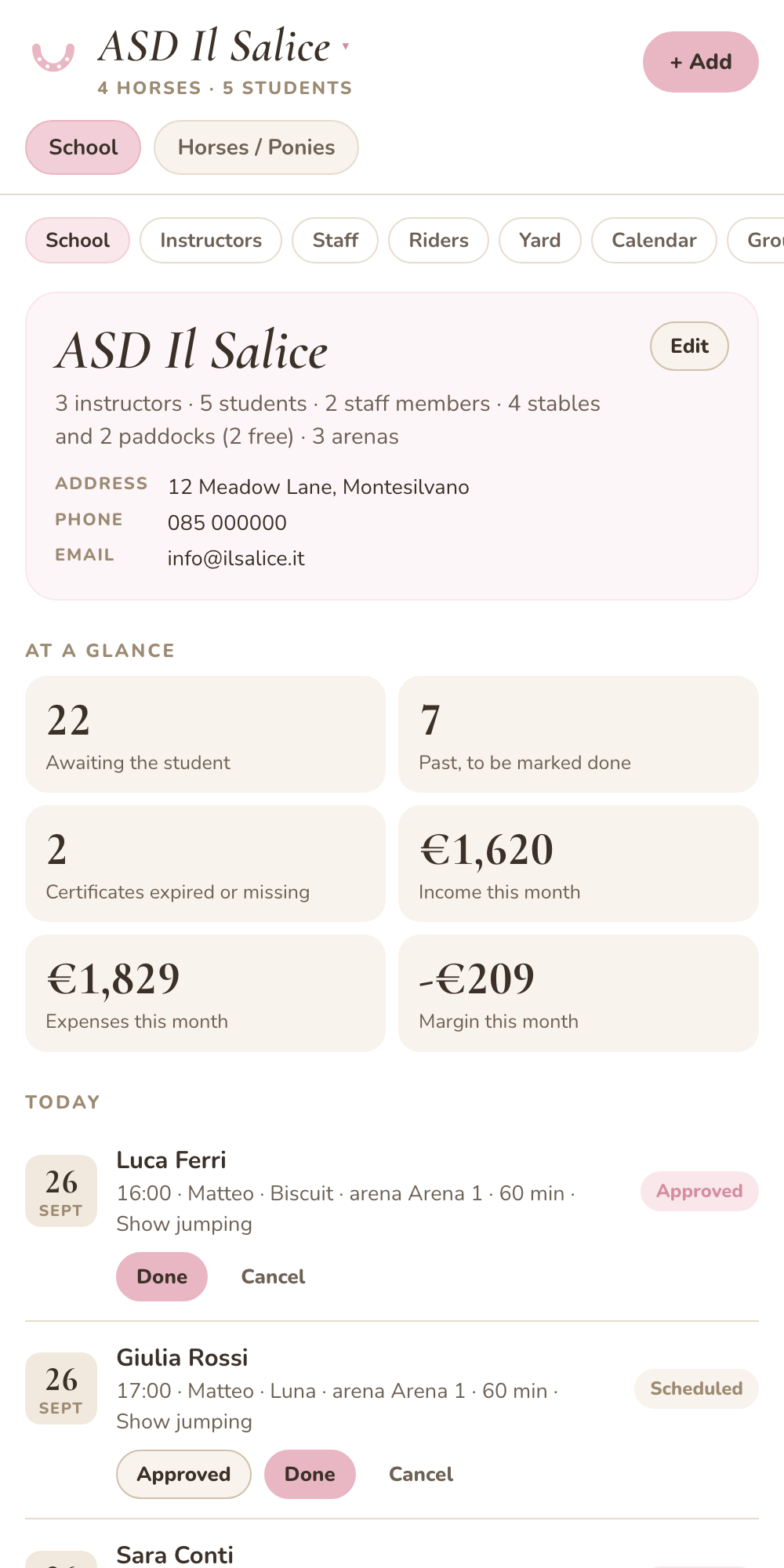
In School tap “Edit” and fill in the profile (name, address, phone, VAT number if you want it on invoices).
In Instructors add whoever teaches lessons with their per-lesson fee and their email: with it, from their free account, the instructor sees the calendar and marks their lessons “Done” from the phone; in Staff grooms, office and maintenance with their monthly pay. They go into the finances expenses on their own.
The School screen is the day’s overview: lessons awaiting the student, students to schedule, medical certificates expiring, horse health.
3Yard: stables, paddocks and arenas
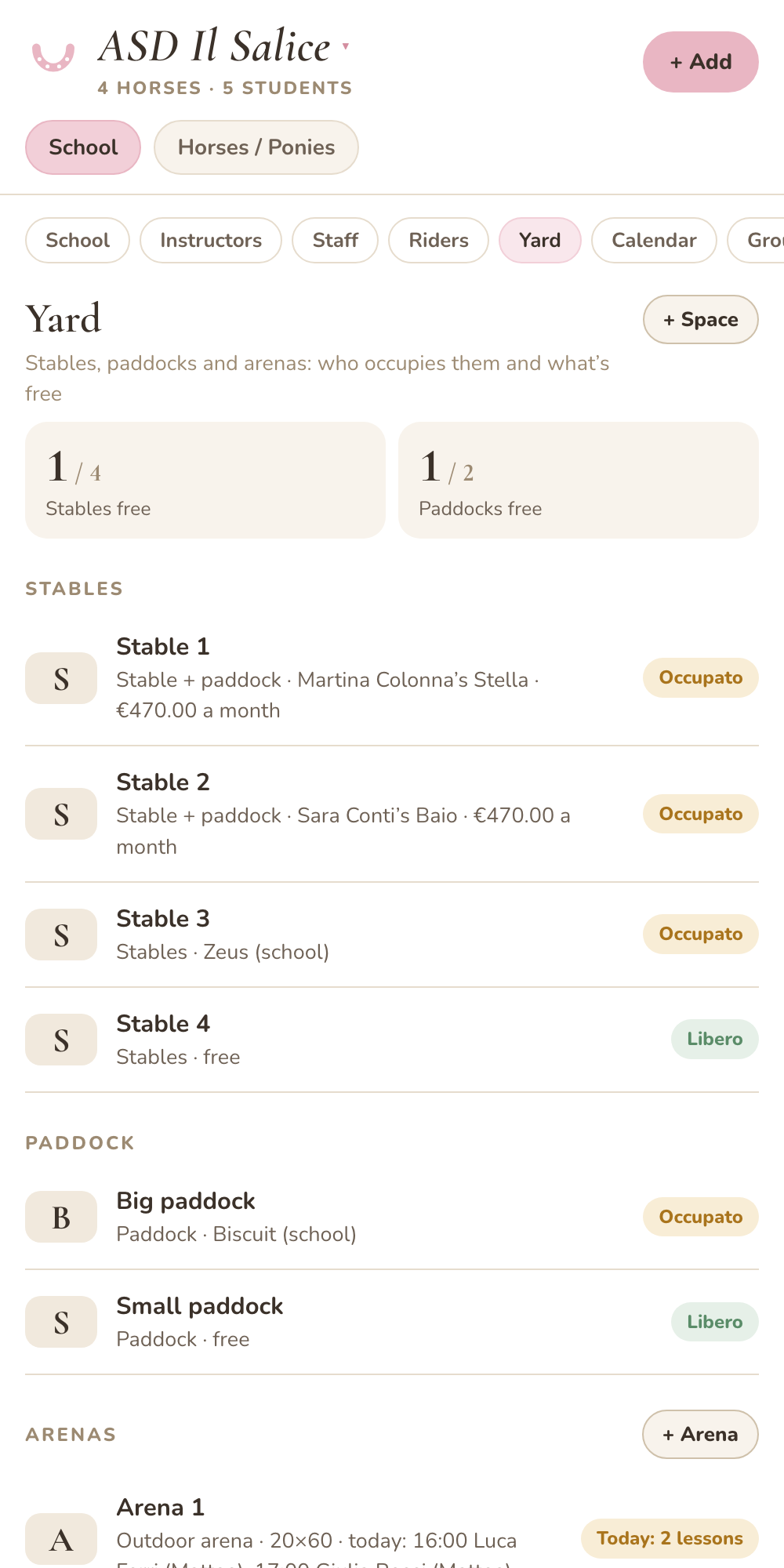
In Yard enter the stables and paddocks with the boarding price and who occupies them (a school horse or a student with their own). Boarding goes into the income every month.
Add the arenas with a name: in the calendar you see whether an arena is free or busy.
4School horses
Tap the school name at the top → “Add a horse or pony”: name, breed, date of birth, photo. These are the horses you use in lessons.
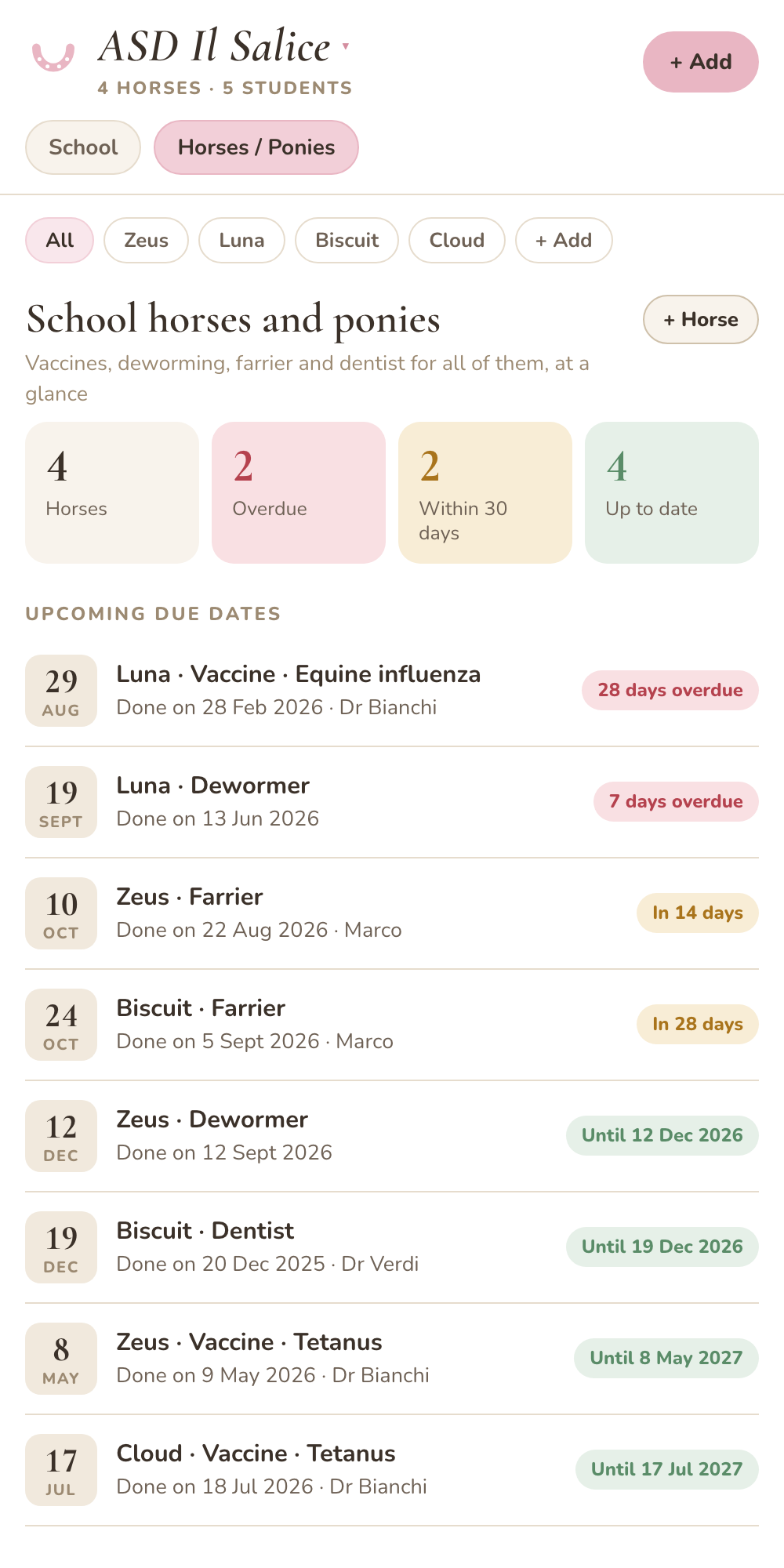
In each horse’s Health you record vaccines, deworming, farrier and dentist with the next due date: the Horses / Ponies tab shows you all due dates together, and every morning you get an email reminder when something is due. The PDF record prints with one tap.
Also in Health: treatments (medicine, dose, times and duration, with today’s dose to tick off and a heads-up when the pack is running out) and the horse’s documents (passport, Coggins, vet reports) as PDF or photo. With “Share” you send your vet a read-only link to the health record.
5Students
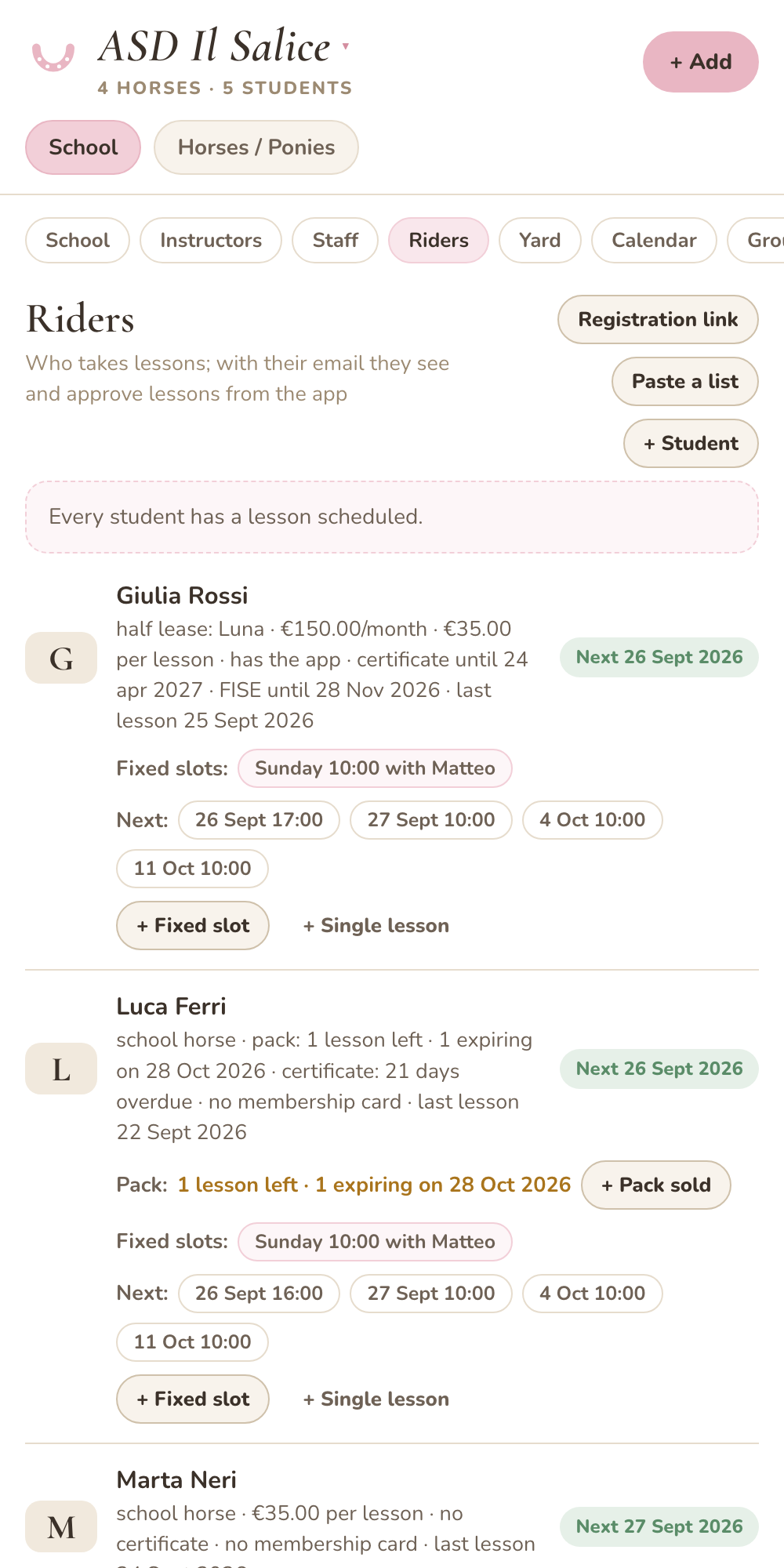
The quickest way: in Students tap “Registration link” and send it to the school’s WhatsApp group. Each student signs up in a minute (email, phone, horse, certificate, membership card) and appears in Students marked “new”: you just add price and payment. “Change link” turns off the old one. Already have a list? “Paste a list”: copy the column from Excel or WhatsApp and they’re all created at once.
You can also add each student yourself with their email: if they already have the app (or create it later, for free), they receive lessons, competitions and fees on their phone and decide whether to share their horse and its due dates with you.
Enter the medical certificate and FISE or FITETREC card expiry (without a valid card the student isn’t insured), how they ride (school horse, own horse or half lease with the monthly fee and the days the horse is theirs) and how they pay: per lesson, with the monthly plan with lessons included, or with lesson packs (for example 10 lessons valid for 3 months). Record each pack sold with “+ Pack sold”: lessons taken are deducted and when two are left both you and the student get a heads-up.
For each student you can set fixed slots (every Tuesday at 5 pm with Federica): the lessons appear on their own in the calendar, week after week. The School tab tells you who has no lesson scheduled. Former students go to the archive, their history stays.
6Calendar and approval from the app
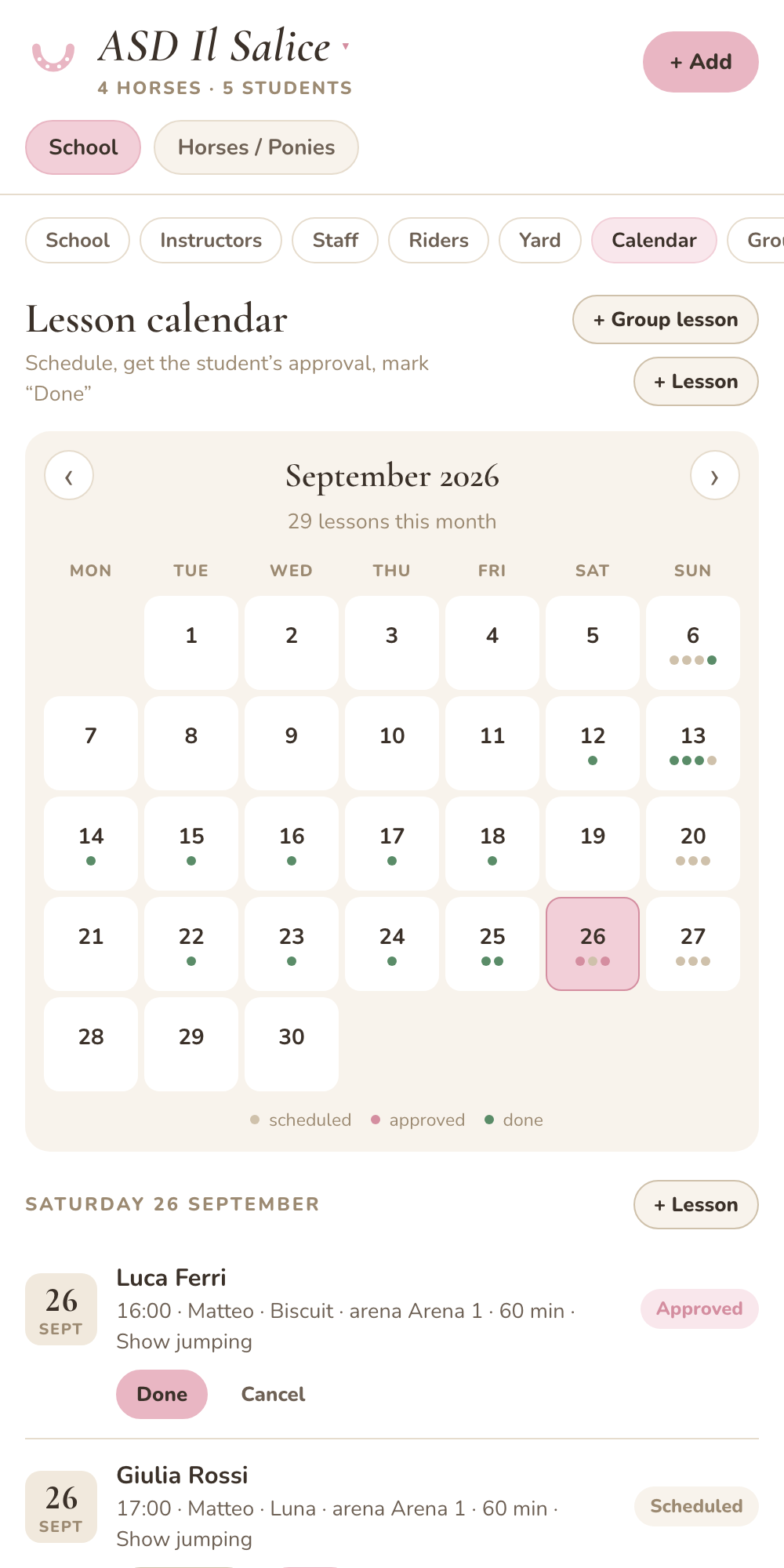
In Calendar tap a day and “+ Lesson”: student, instructor, horse, arena, time. If the horse or arena is already busy at that time, the app won’t save it.
The student finds the lesson in their app with “Approve” and “Can’t make it”; you see the status change in the calendar. Once the lesson is done tap “Done”: it goes into the finances with the student’s price and the instructor’s fee.
For group lessons use Group lessons: create it once (instructor, day, time, arena, places, weekly too) and tick who’s in with “+ Students”. Each gets their own lesson with their horse, approves it from their phone and pays as usual; the instructor is paid once per group lesson.
7Trail rides and competitions
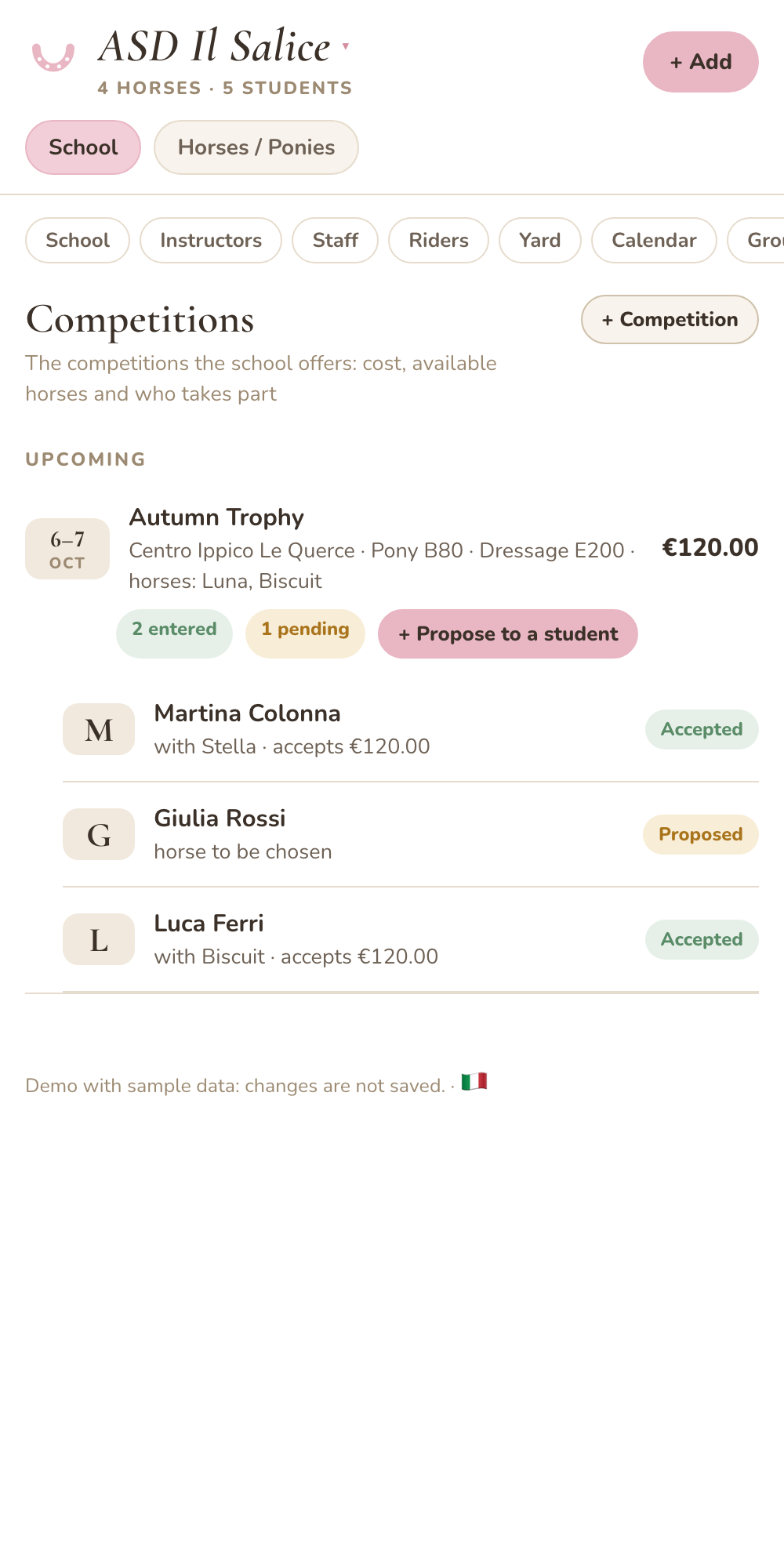
In Trail rides you create the ride with the available horses and the places: students sign up, you see who’s coming. The guide’s fee can be per ride or per participant.
In Competitions you propose the competition to students with the fee: each accepts from their app choosing the horse; accepted fees go into the competition’s month.
8Finances: payments, invoices, accountant
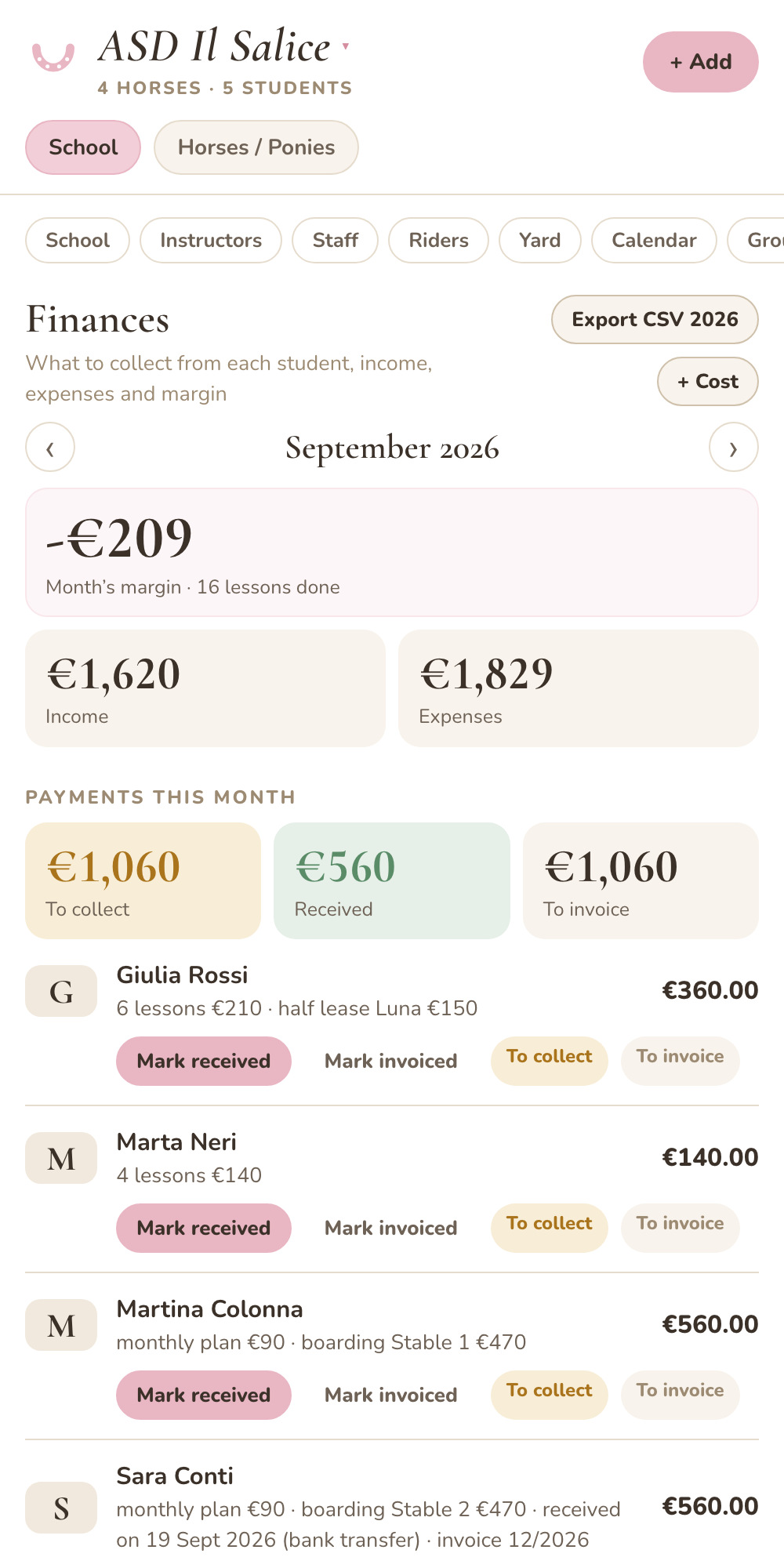
In Finances you have the month on one screen: income (lessons, packs, plans, boarding, competitions), expenses (fees, salaries, costs), margin.
For each student you see what they owe and mark “Received” and “Invoiced” with number and date. “Export CSV” gives you the whole year in one file for Excel, Numbers or your accountant. On Mondays you get the week at a glance by email: lessons, who hasn’t approved, certificates and cards expiring, packs to renew, fees to collect.
9And the students?
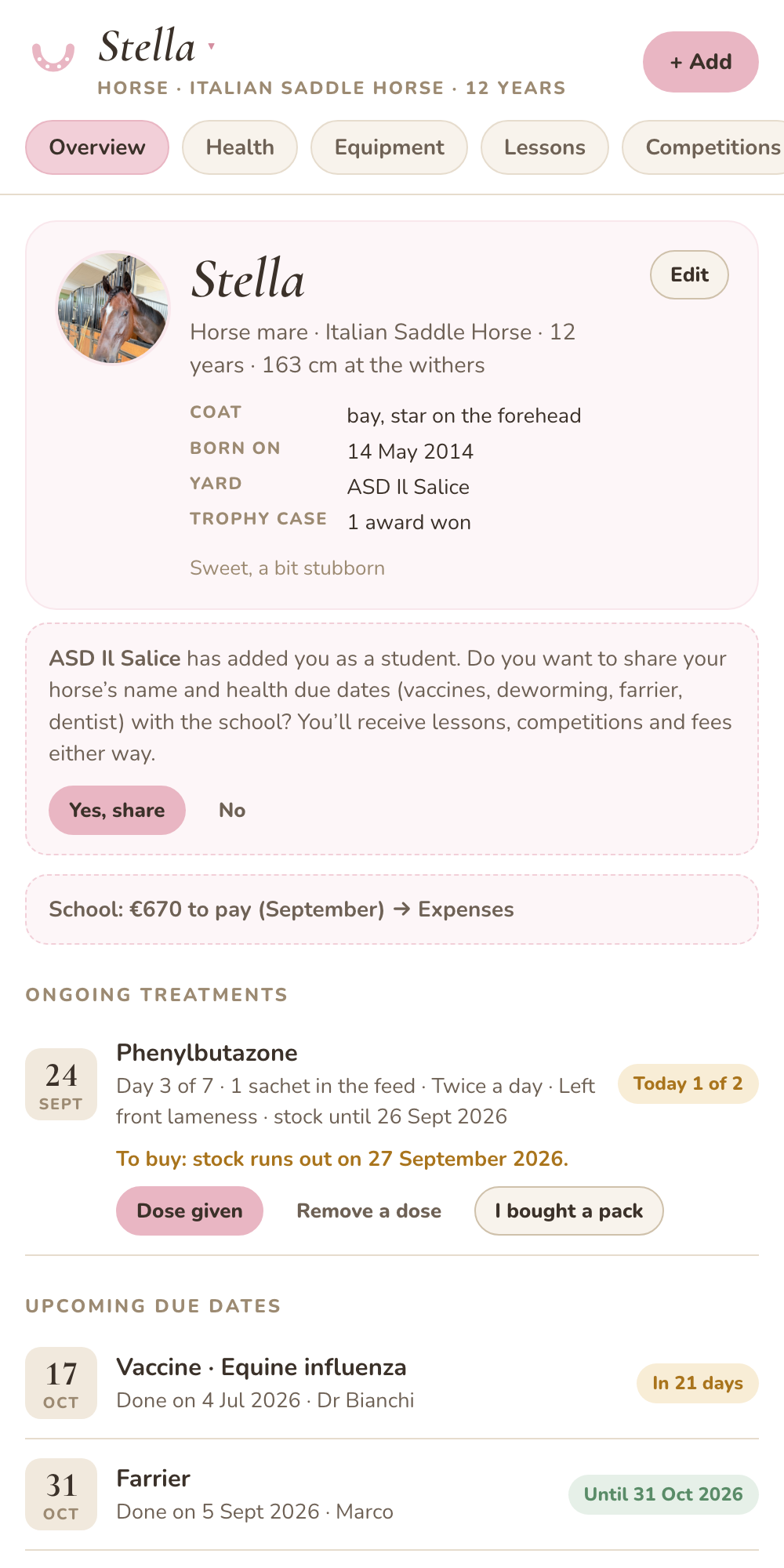
For them the app is free, and as the school’s students they get Pro included: the horse’s diary with health, treatments, documents, due dates, lessons, competitions, medals, expenses, email reminders and the phone calendar. The school’s lessons, competitions and fees arrive on their own, to approve or to pay, and they see how many lessons are left in their pack.
They just need to sign up with your registration link (adding a password) or at myhorsediary.app with the same email you entered in Students. You can send them the demo link: request it from the landing page and it arrives by email.
Ready to try it with your own data? 2 months free, no card, then it renews on its own; cancel anytime.
Start the free trialRequest a guided demo